
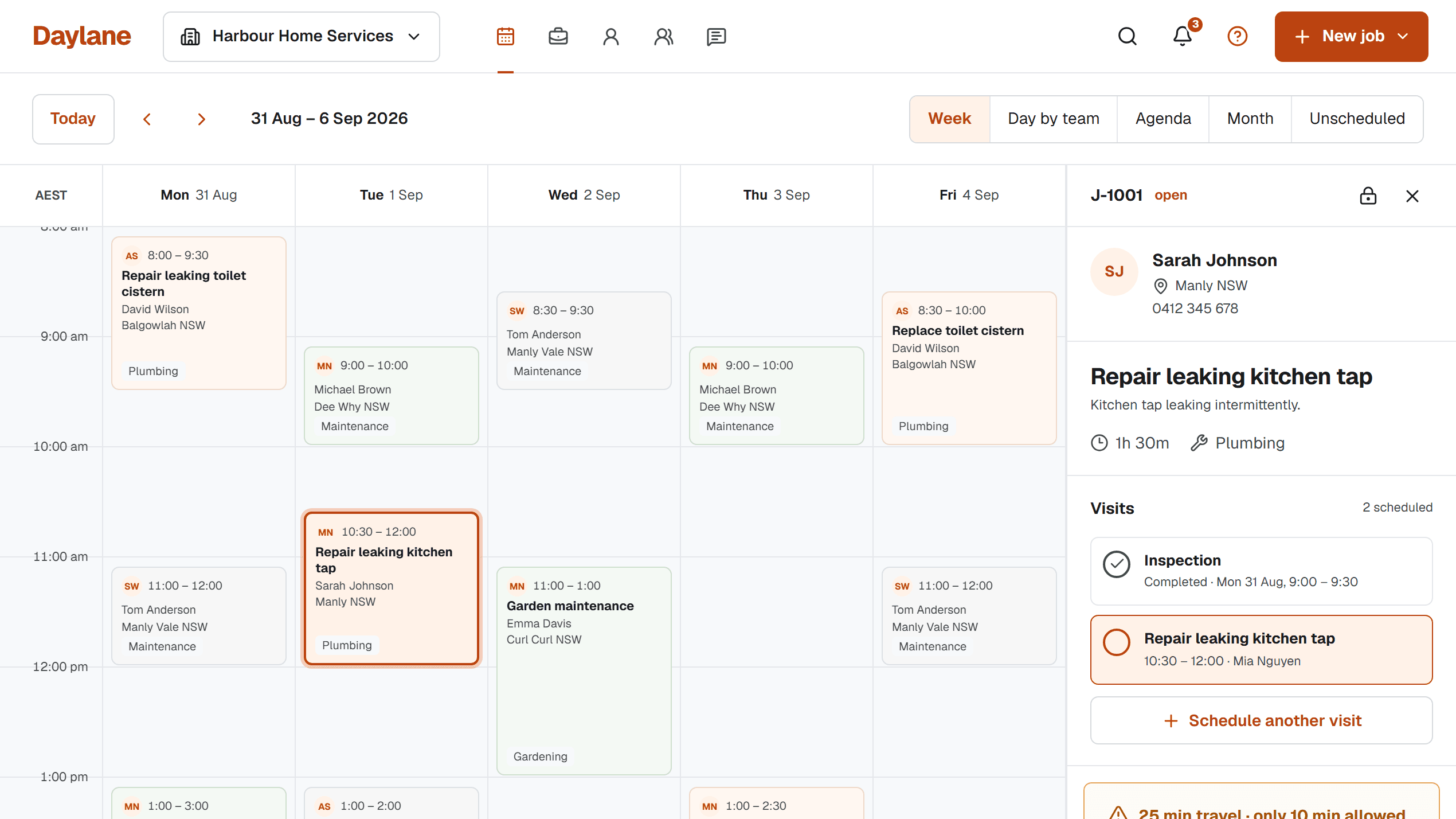
Open the scheduled Visit and use its Reschedule action when dragging a calendar card is awkward or imprecise. The form lets you review labelled timing fields before saving. This is useful on a narrow screen, with a keyboard or whenever you want to check more than the start time.
Open the existing Visit
Choose the Visit from the schedule or Agenda and verify its Job reference and Customer. Owners and schedulers can reschedule Visits that are still scheduled. Use a new Visit for a genuine additional attendance rather than moving a completed one.
| Field | Decision |
|---|---|
| Date and Internal start | When the reservation begins |
| Expected duration | How long the service is planned to occupy |
| Arrival Window | What the customer expects about arrival |
| Travel buffer | Allowance around adjacent work |
| Visit instructions | Current attendance-specific brief |
Move through the form deliberately
With a keyboard, use Tab to reach labelled controls and review their current values before changing them. On touch, tap the field you intend to edit and check the date or time after the picker closes. Browser date and time controls can behave differently, so confirm the displayed value.
The primary assignee is fixed in the reschedule form. If the person must change, review assignment management as a separate decision instead of assuming that moving the time also chooses another person.
Read warnings and verify the outcome
Review conflicts or warnings before saving. If the form asks for a reason to keep a warned time, record the actual arrangement that makes it workable. Check the customer-email choice as well.
After Save new time, reopen or inspect the Visit's saved timing. Ensure the same Job reference remains and the intended arrival window is shown. Tell anyone relying on an earlier brief about the change.
Sources and scope
An original operational guide from the Daylane team at Blu Mint Digital. Scenarios, durations and message wording are illustrative planning examples, not customer results or industry benchmarks. Product references were checked against the Daylane implementation on 5 September 2026. Adapt the workflow to your service, customer agreements and working conditions.
How we write and maintain our guides. Free templates and planning tools.