
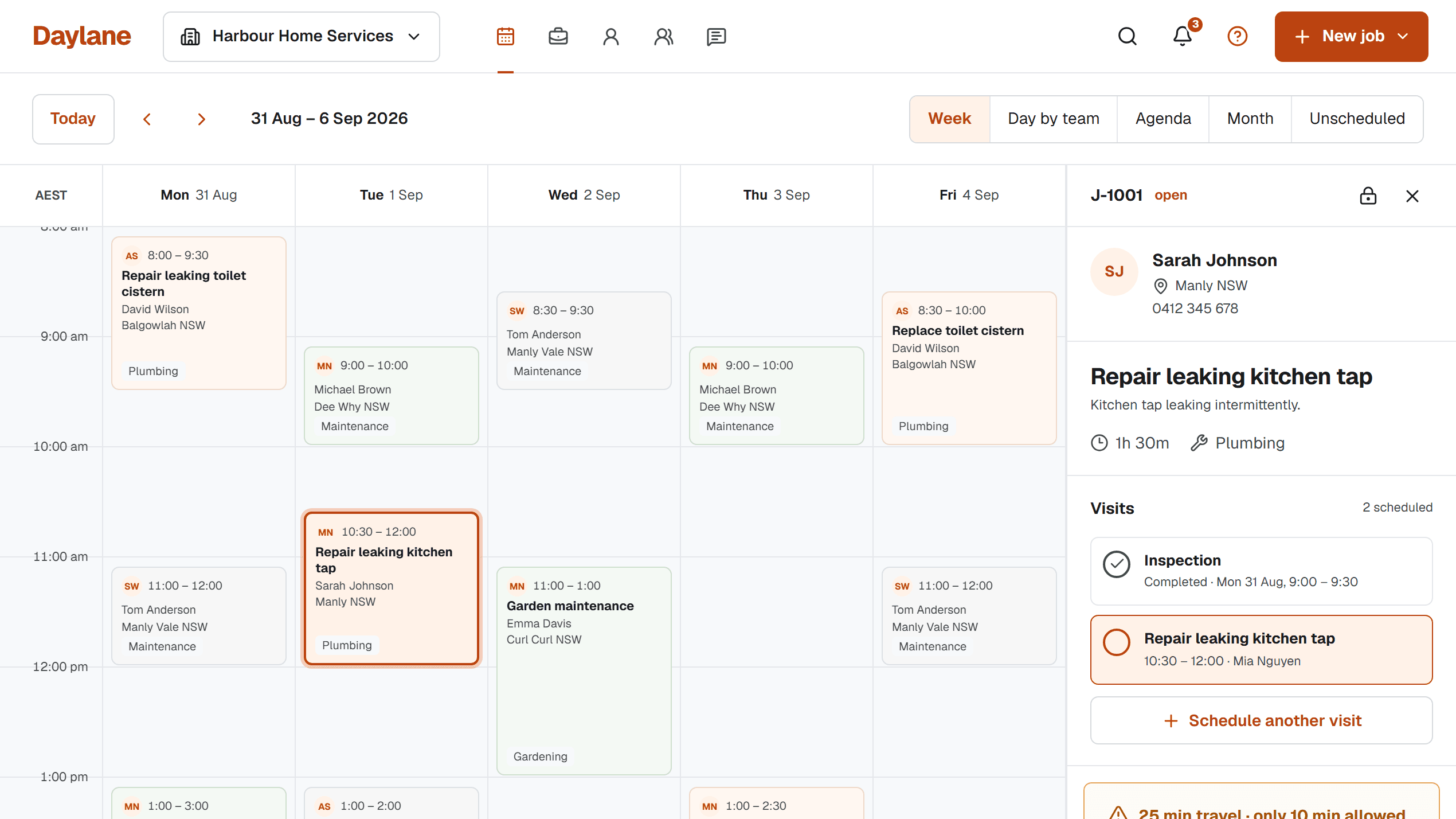
Reschedule the existing Visit when the same agreed attendance needs a different time. Keeping that Visit attached to its Job preserves the relationship between the work and the changed booking. Create another Visit when there is genuinely another attendance to plan, such as a return after assessment.
Check which record needs changing
Open the scheduled Visit and verify its Job reference, service Location and purpose. Daylane's reschedule page is available to owners and schedulers for Visits still in scheduled status. It is not the route for rewriting a completed attendance.
| Situation | Action to consider |
|---|---|
| Friday attendance is moving to Monday | Reschedule the existing scheduled Visit |
| Assessment completed; return needed with parts | Add another Visit to the Job |
| Unrelated work requested later | Create a separate Job with its own scope |
Review the complete new time
In Reschedule Visit, check Date, Internal start, Expected duration, Arrival Window, Travel buffer and Visit instructions. Use Save new time once the arrangement is ready. The primary assignee is fixed in this form; use assignment management for a change of person.
Resolve scheduling warnings and conflicts before making a promise. If keeping a warned time is appropriate, the form asks for a reason. A saved override should reflect a checked arrangement, not a way to hide missing travel time.
Check the saved Visit and the message outcome
Review Email the Customer about this change before saving. Its default depends on whether a previous communication was sent or delivered for the Visit. Do not assume every move always sends an email.
After saving, open the Visit and confirm the new date, time and instructions. Verify the customer update result and tell assigned people who may be using an earlier brief. For a recurring occurrence, check the next regular Job because moving one does not shift the series.
Sources and scope
An original operational guide from the Daylane team at Blu Mint Digital. Scenarios, durations and message wording are illustrative planning examples, not customer results or industry benchmarks. Product references were checked against the Daylane implementation on 5 September 2026. Adapt the workflow to your service, customer agreements and working conditions.
How we write and maintain our guides. Free templates and planning tools.