
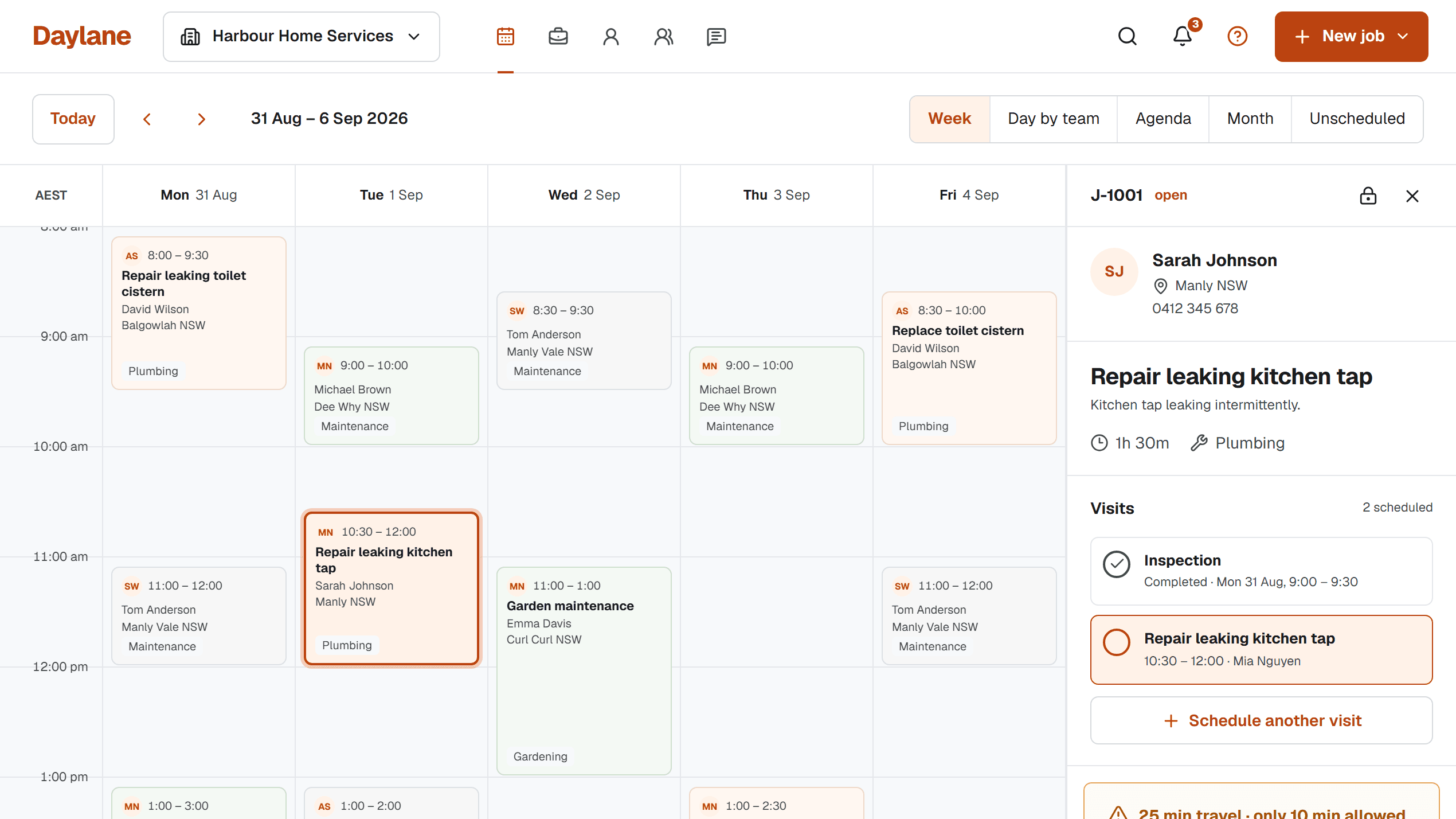
Changing scheduling tools is easiest when you move the next useful slice of work, not the entire history at once. A careful transition keeps the paper diary available for reference while the digital Job calendar becomes the source of truth for new and upcoming work.
Choose a clean cutover point
Pick a date, usually the start of a week, after which new Jobs will be entered in the digital calendar. Keep the old diary read-only for earlier work. Writing in both systems for weeks creates uncertainty about which time is current.
Tell anyone who helps with scheduling which system is authoritative. If you work alone, write the cutover date inside the diary as a visible reminder. A small rule prevents a large reconciliation task.
Move upcoming commitments first
Enter confirmed future Visits, starting with the nearest dates. Add the Customer, service Location, Job description and expected duration rather than copying only the calendar title. This is the moment the new system starts providing more context than the old one.
Next, add open Jobs that do not have a confirmed time to an unscheduled list. Do not invent dates just to make the migration look complete. A visible backlog is more honest and more useful than false calendar commitments.
Import only useful Customer data
If your Customer list is in a spreadsheet, clean duplicates and obvious errors before importing. Keep a backup of the original file. Map fields deliberately so a postal address does not accidentally become a service Location or an internal note become Customer-visible.
Australian privacy guidance emphasises data quality and security. Moving systems is a good opportunity to remove obsolete contacts and avoid carrying unnecessary personal information into the new tool.
- Back up the original diary export or spreadsheet
- Confirm Customer names and contact details
- Separate billing and service addresses where needed
- Import upcoming Jobs before old history
- Test an export from the new system
Run one real week, then adjust
Use the new calendar for a normal week and note every moment you return to messages or paper. The missing detail might be a Location access note, a travel buffer or a clearer Job title. Improve the record structure before adding more automation.
After the week, confirm completed Visits, future returns and unscheduled work. When the new calendar has become trustworthy, archive the old process rather than keeping two active systems forever.
Sources and scope
This practical guide was checked against the primary sources below on 1 September 2026. It is general information, not legal, tax, safety or accounting advice for your circumstances.
How we write and maintain our guides. Free templates and planning tools.